Installation, Wiring & Motor Test
For SparkNavi Blue / Blue2. Screens and parameter names may vary with the ArduPilot / Mission Planner version.
Connect to Mission Planner
- Connect the controller to the computer with a USB Type-C data cable and allow it to start.
- In Windows Device Manager → Ports (COM & LPT), find the COM number of ArduPilot MAVLink.
- Select that COM port at the top right of Mission Planner and click Connect. The baud selector generally does not affect a USB connection; telemetry-radio baud must match the radio configuration (57600 in the manual example).
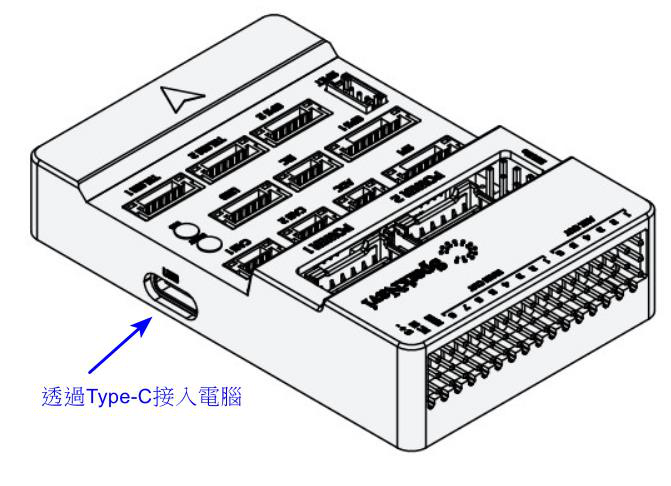
USB Type-C connector
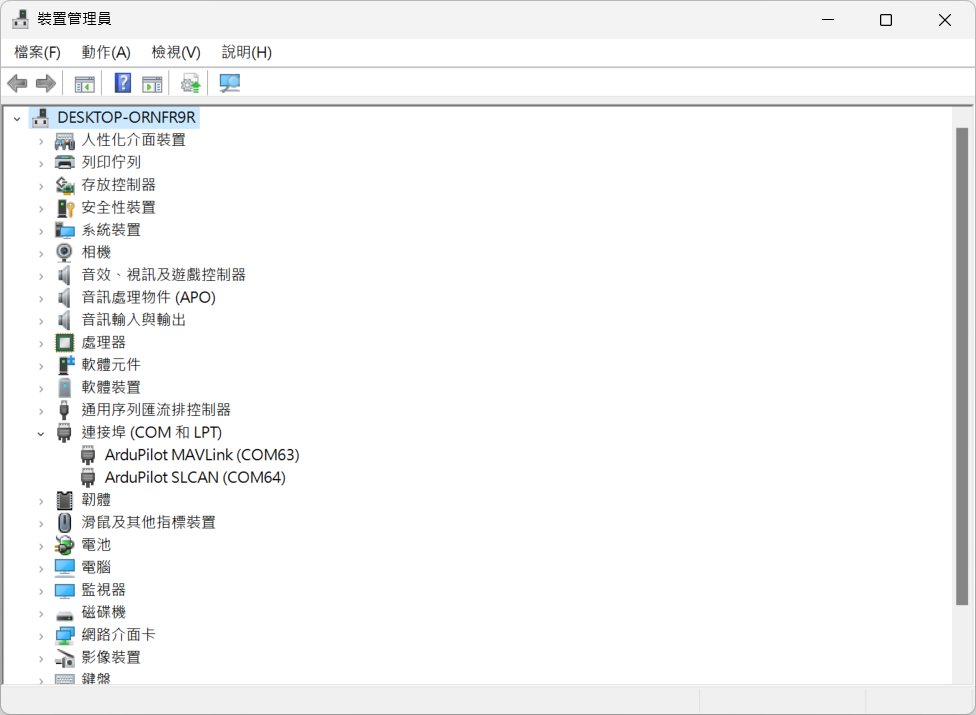
Windows COM-port identification
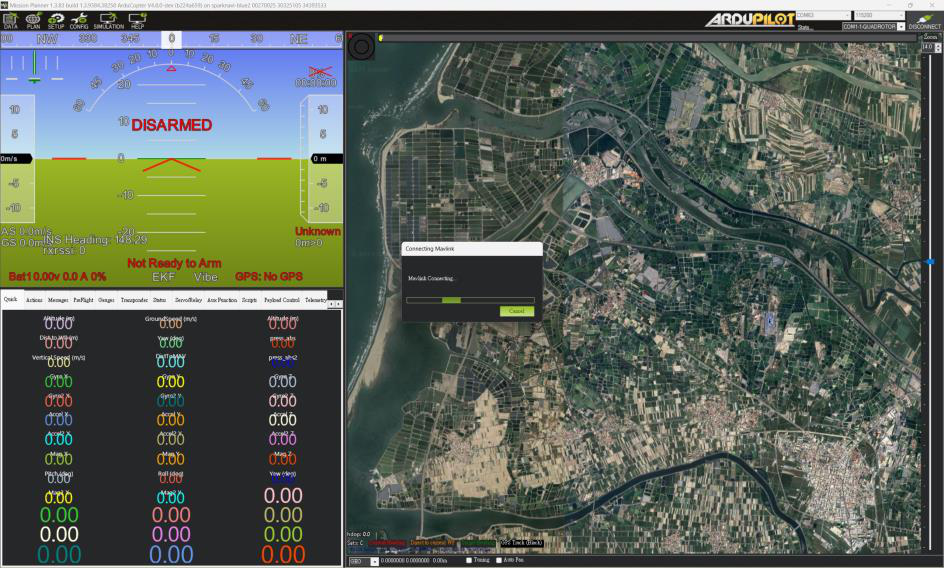
Mission Planner connection
Orientation & Mounting
- For a conventional multirotor, point the white arrow toward the nose. For another mounting orientation, set AHRS_ORIENTATION accordingly and verify HUD movement.
- Use the supplied 3M foam tape and avoid cable tension on the case. Keep magnetic metal, high-current wiring and interference sources away from the sensor region near the arrow.
- Choose vibration isolation using VIBE, clipping and log spectra. Address propeller balance, motors, frame and cable routing first; an isolator can also introduce resonance.
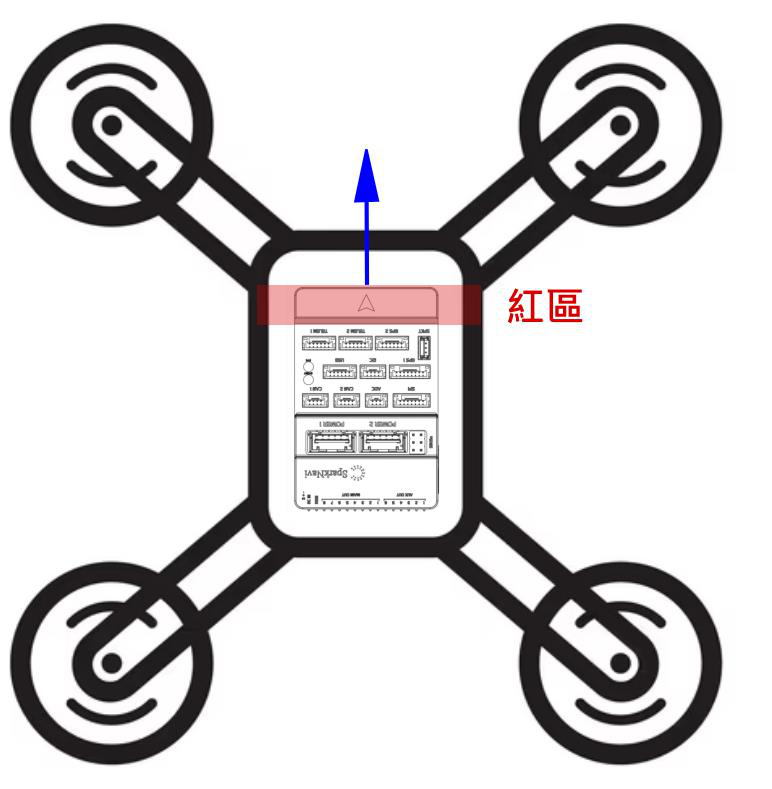
Sensor-sensitive area shown in the manual
Motor Order & Rotation
Remove all propellers before testing motors. Numbers in the frame diagram are motor/output identifiers; A, B, C and D are the Mission Planner test sequence, not necessarily the same numbering.
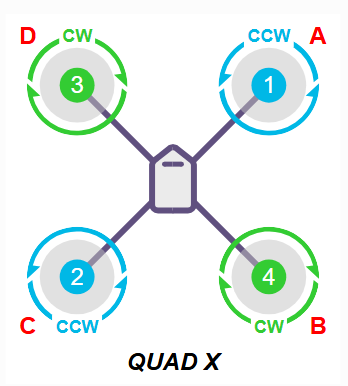
Quad-X motor layout example
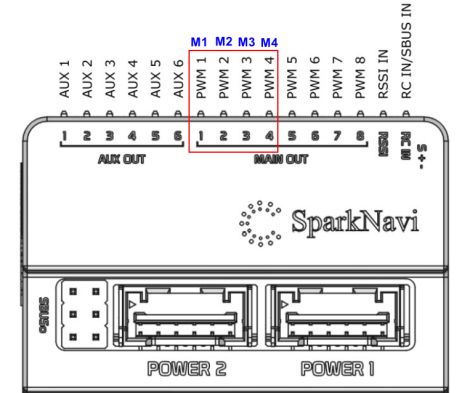
Blue output connectors
- Select the actual Frame Class / Frame Type, then wire according to its motor diagram.
- Open SETUP → Optional Hardware → Motor Test and verify each motor position and direction.
- Start with a low throttle sufficient for reliable rotation and use a short test. The screenshot’s 30% / 2 seconds is an example, not a universal setting.
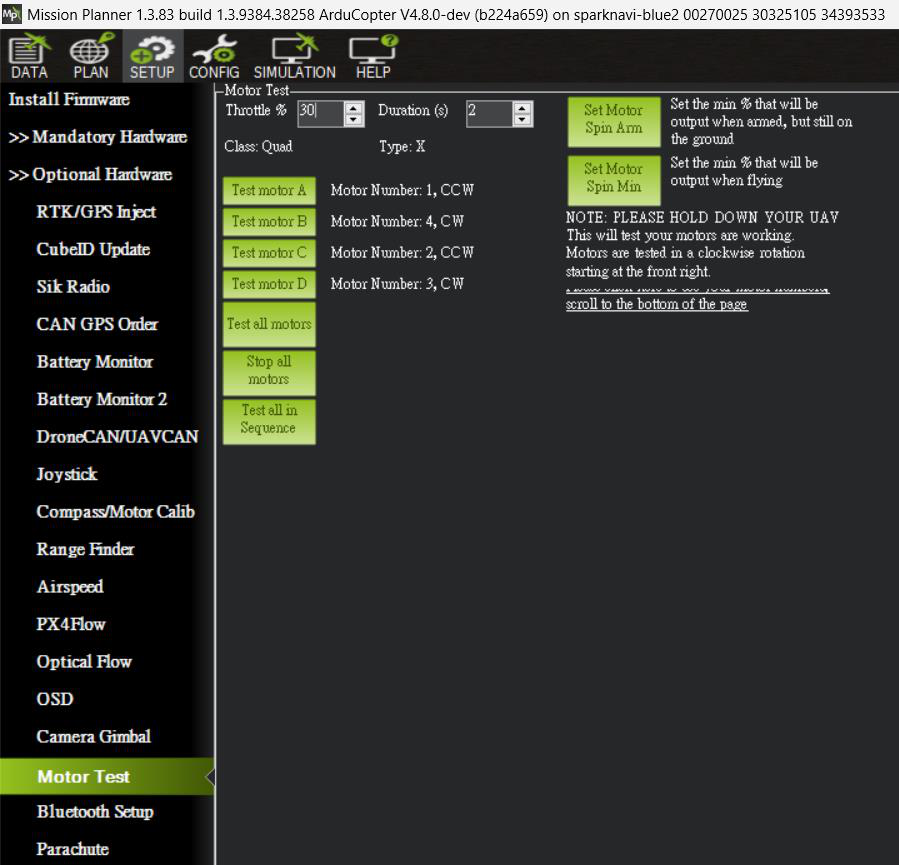
Mission Planner Motor Test
ArduPilot motor-order diagrams
POWER1 / POWER2 & PWM / AUX Power
POWER1 and POWER2 provide redundant controller power inputs through suitable power modules. This redundancy protects controller power; motor / ESC propulsion power remains a separate system design.
The PWM / AUX positive rail is not automatically powered by the controller. Supply servos from a suitable regulated supply or BEC, within the servo and rail ratings, with common ground. Confirm + / − / Signal from the pinout; do not connect an arbitrary propulsion battery directly.
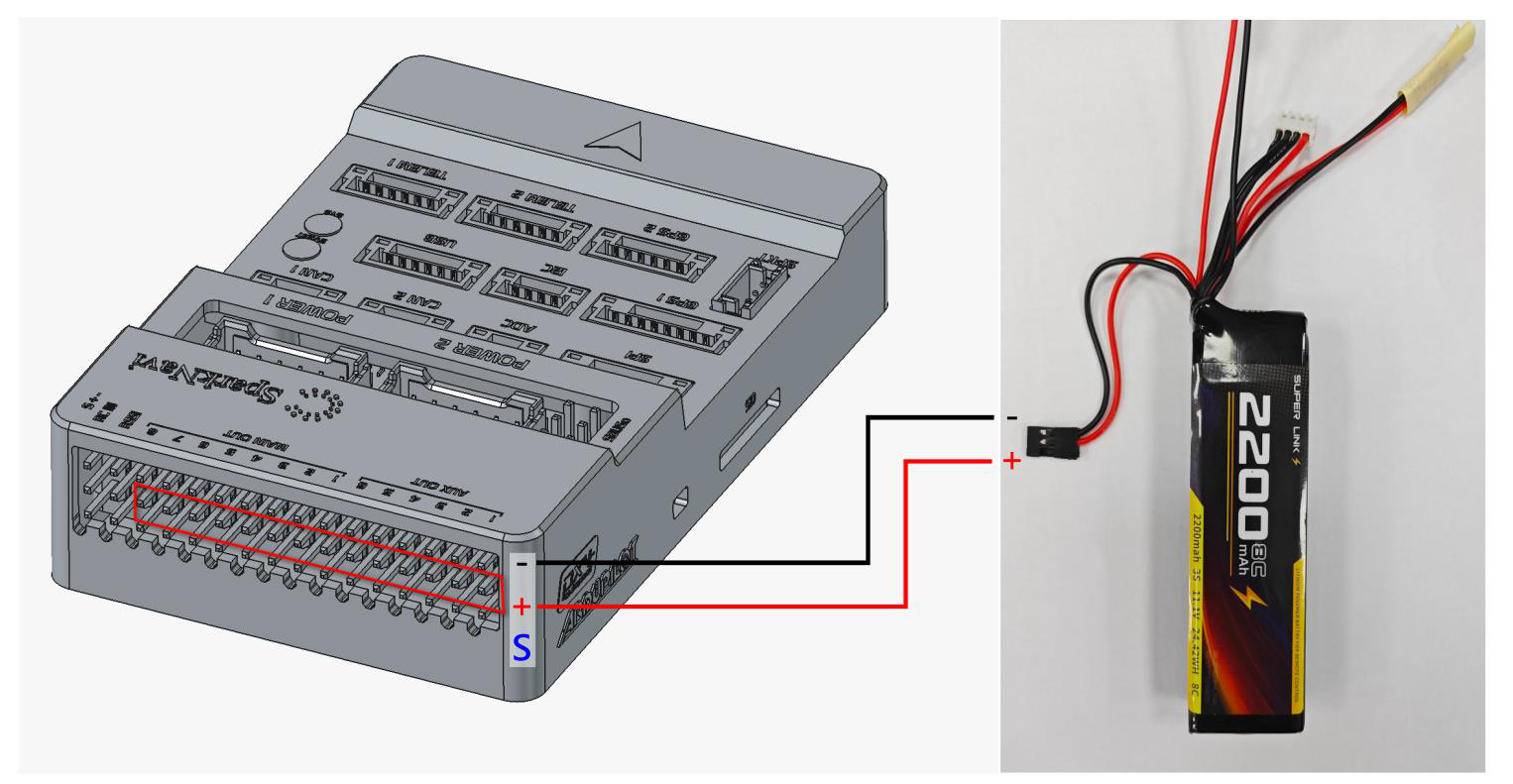
External rail power example; verify voltage and polarity
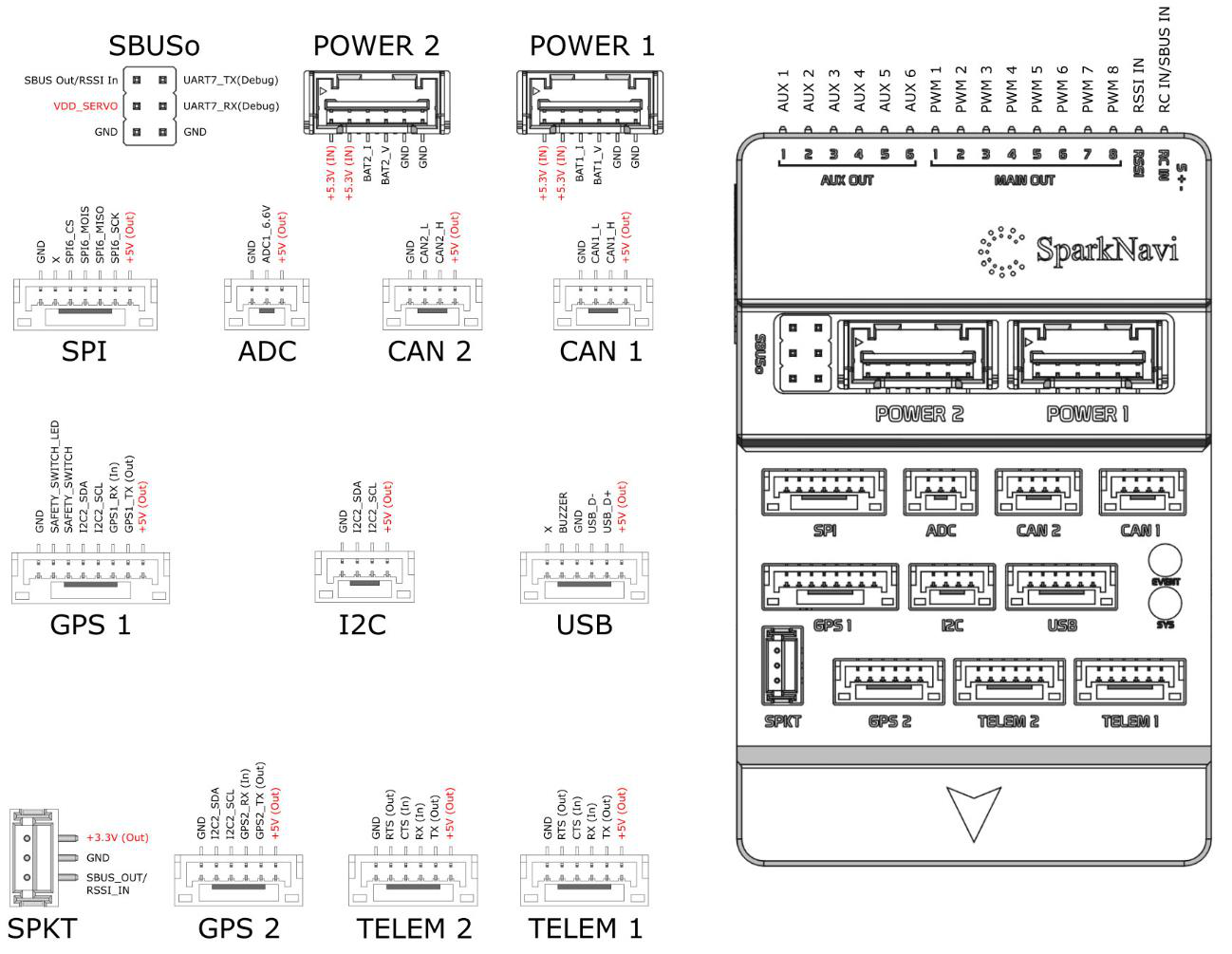
Blue pinout
UART7 Development Debugging
The following is the manual’s custom ArduPilot development setup. UART7 maps to SERIAL5; first confirm that the port is not assigned to SBUS or another peripheral.
STDOUT_SERIAL SD7
STDOUT_BAUDRATE 115200
Add these lines to hwdef.dat, rebuild and flash; set SERIAL5_PROTOCOL = -1, reboot and receive debug output with a 3.3 V UART interface.
printf("Blue UART7 debug: value=%d\r\n", value);
Dimensions & Mechanical Files
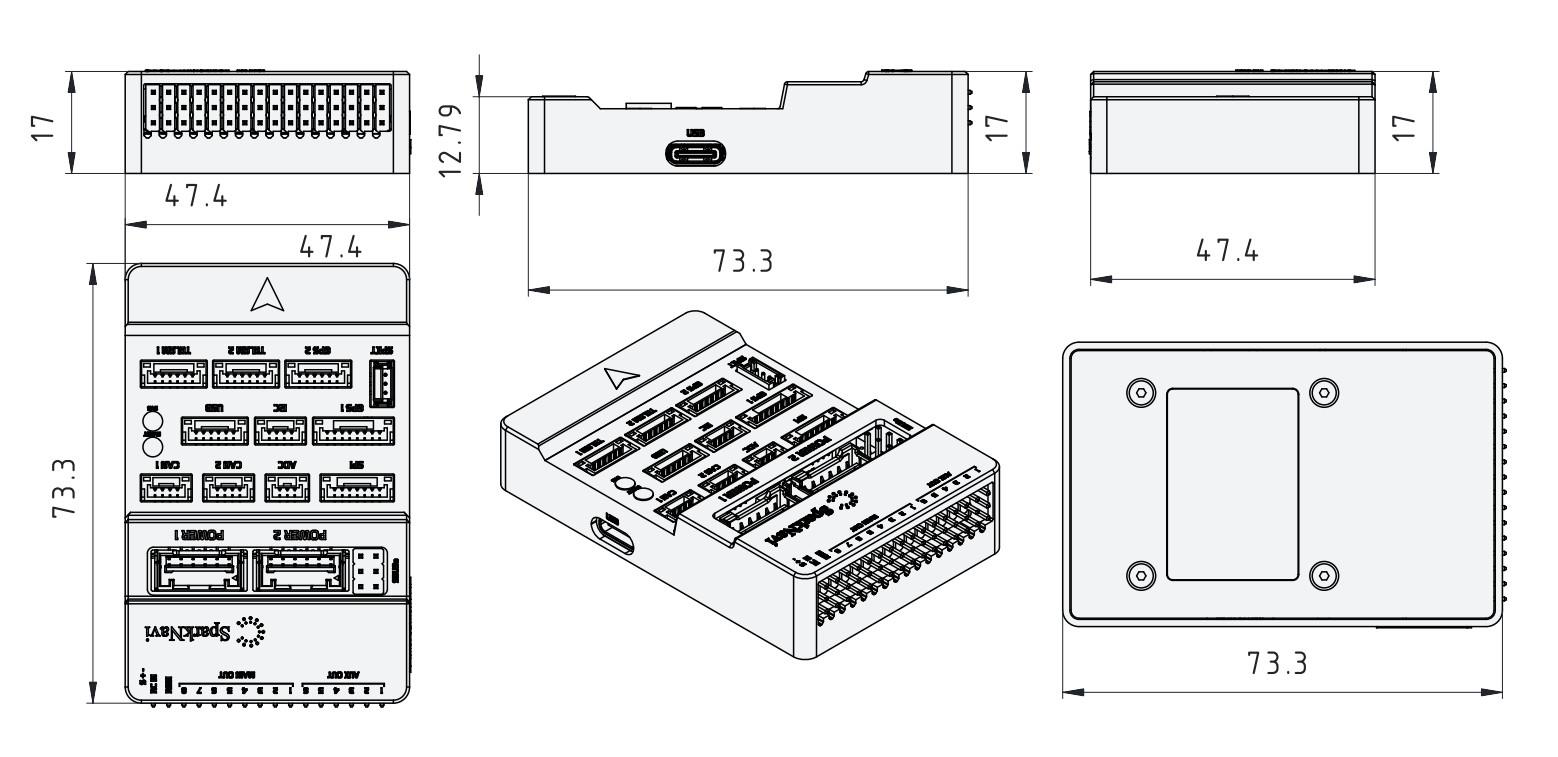
Blue dimensions
Download 3D STEP · Blue / Blue2 specifications
Source document:Mission Planner V2 · PDF pages 3–22